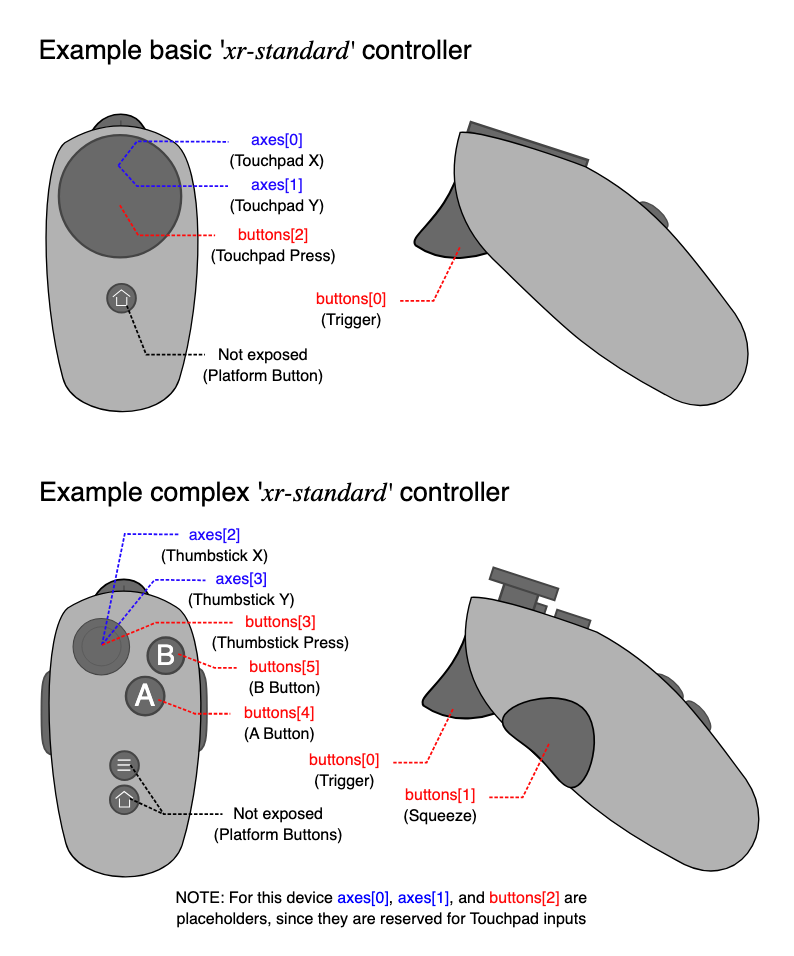
The MotionController offers a way to stream the current pose, button and trackpad states of the Quest 3 motion controller to the python side. To use this mixed reality (XR) feature, you need to setup vuer behind a SSL proxy. I usually use ngrok, which is a paid service. You can also use local tunnel, which is free.
Motion Controller API
Getting the motion controller states: You can get the full pose of the motion controllers by listening to the CONTROLLER_MOVE event. You can add flags left and right to specify which side you want to track.
Haptic Feedback via pulsing: You can pulse the gamepad using the following keys: pulseLeftStrength, pulseLeftDuration, puseLeftHash. The pulseLeftStrength is a number between 0 and 1, and the pulseLeftDuration is the duration of the pulse in milliseconds. The puseLeftHash is a unique identifier for the pulse, that once changed, will trigger a new pulse.
Example Script: Haptic Trigger Pull
The example below shows how to trigger a haptic pulse to reflect the trigger pull value. The user should experience a stronger vibration when the trigger is pulled further.
python
from vuer import Vuer, VuerSessionfrom vuer.schemas import MotionControllersfrom asyncio import sleepapp = Vuer()prev_bstate = None@app.add_handler("CONTROLLER_MOVE")async def handler( event, session: VuerSession,): global prev_bstate bstate = event.value["leftState"]["triggerValue"] if prev_bstate != bstate and bstate: # pulse the gamepad according to the trigger value session.upsert @ MotionControllers( key="motion-controller", left=True, right=True, pulseLeftStrength=bstate, pulseLeftDuration=100, puseLeftHash=f"{datetime.now()}:0.3f", ) prev_bstate = bstate@app.spawn(start=True)async def main(session: VuerSession): # Important: You need to set the `stream` option to `True` to start # streaming the controller movement. session.upsert @ MotionControllers(stream=True, key="motion-controller", left=True, right=True) while True: await sleep(1)
The returned data looks like the following:
typescript
/** * Significantly more accurate and stable than controller-tracking. */export type ControllerData = { left?: Matrix4Tuple; // array with length==16 right?: Matrix4Tuple; // array with length==16 leftState?: ControllerStateType; rightState?: ControllerStateType;};export type ControllerStateType = { trigger: boolean; squeeze: boolean; touchpad: boolean; thumbstick: boolean; aButton: boolean; bButton: boolean; triggerValue: number; squeezeValue: number; touchpadValue: [ number, number ]; // X and Y values for the touchpad thumbstickValue: [ number, number ]; // X and Y values for the thumbstick aButtonValue: boolean; bButtonValue: boolean;};
All 4x4 transform matrices used in WebGL are stored in 16-element Float32Arrays. The values are stored in the array in column-major order; that is, each column is written into the array top-down before moving to the next column to the right and writing it into the array. Therefore, for the array [a0, a1, a2, …, a13, a14, a15], the matrix looks like this: